Our Support Page

If you have a question or problem related to a purchase, please contact our support staff via:

  1. Chat (link on the lower right of this page)
  2. Email (sales@nosubscriptionsoftware.com), or
  3. Telephone (727)-300-0220

In some cases, we might need to remotely access your computer to help you more effectively.

You can use the link below to download our temporary remote access tool.

Start Remote Support Session


How to Start a Remote Support Session

When your technician asks you to start a session

  1. Click on the link provided above.

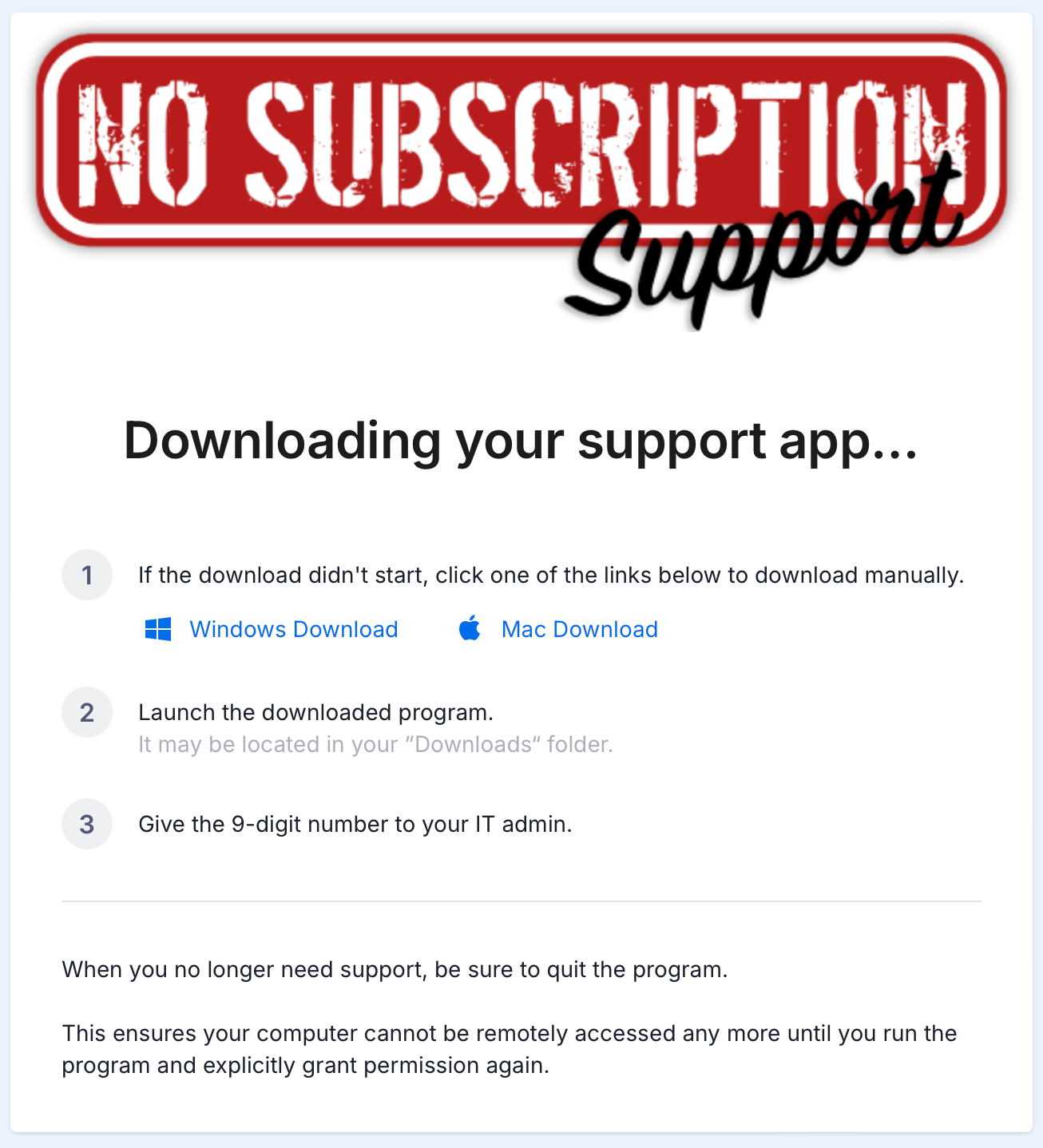
    • This will bring you to a page to download a small “remote support” app.

  2. Download the remote support app.

    • On Windows you’ll get a file ending in .exe.

    • On Mac you’ll get a file ending in .dmg or .pkg.

    • On mobile you may be directed to the App Store or Google Play.

  3. Run or open the app.

    • Windows: Double-click the downloaded file and choose Run if prompted.

    • Mac: Open the downloaded file and drag the app to Applications if asked, then open it.

    • Mobile: Install the app, then tap Open.

  4. Allow any required permissions.

    • If you see security prompts (e.g., “Are you sure you want to open this?”), choose AllowOpen, or Run.

    • If requested, allow screen sharing and control so the technician can assist you.

  5. Read and accept the disclaimer.

    • Review the short disclaimer on the screen.

    • Click AcceptAgree, or OK to continue.

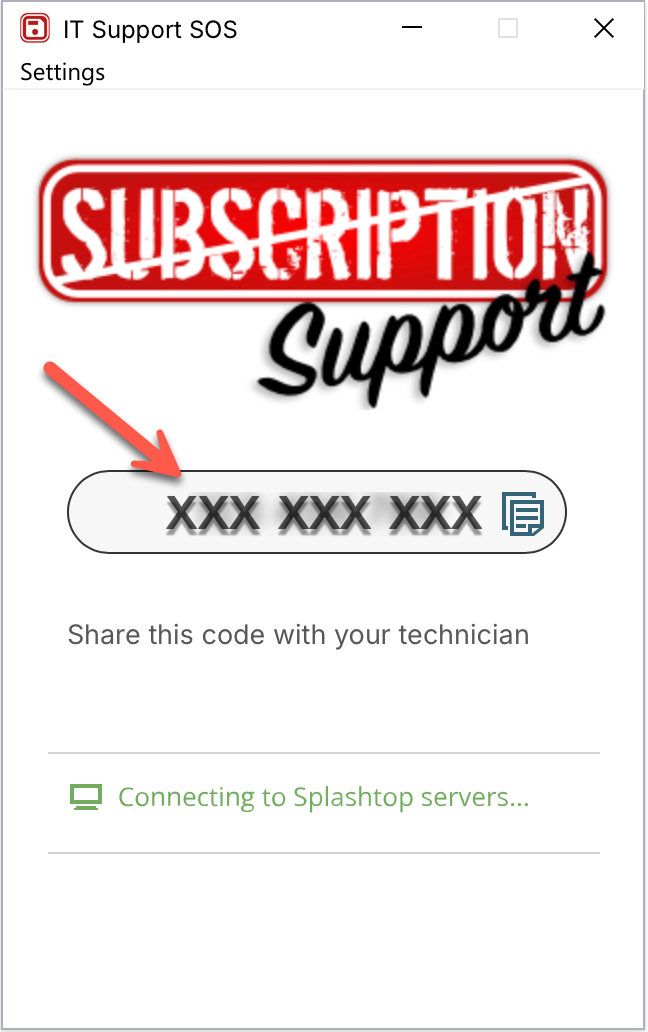
  6. Share the session code with your technician.

    • The app will show a session code (usually a series of numbers).

    • Read that code to your technician exactly as it appears.

  7. Keep the app open.

    • Do not close the remote support app while the technician is working.

    • You will see your mouse moving and windows opening—this is normal.

  8. Watch as the technician works.

    • You can continue to use your device, but try not to move the mouse or type unless the technician asks you to.

    • If you need to stop at any time, let the technician know.

  9. End the session.

    • When the support work is finished, your technician will end the session, or

    • You can click DisconnectEnd Session, or simply close the remote support app.

  10. Optional: Remove the app.

    • For one-time support, you can safely delete the downloaded file or uninstall the app after the session.

    • This will prevent any future access until you explicitly start a new session.